Plugins
MatCap for Nuke
Nuke
OVERVIEW
A packaged Nuke tool for applying MatCap looks from camera-space Normals, with setup examples for Blender and Maya / Arnold.
Video introduction
Overview
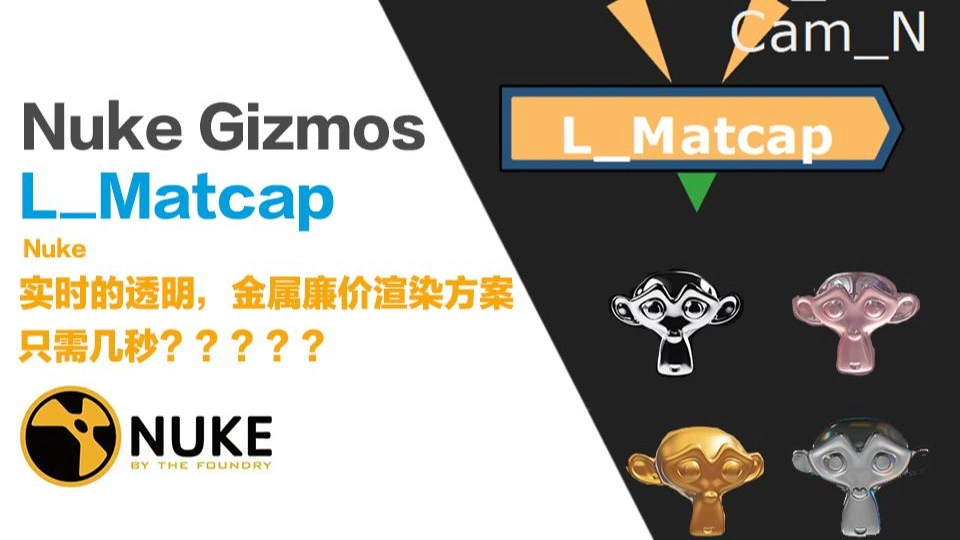
MatCap uses a material-sphere image to define an object's shading and appearance. Familiar from Blender and ZBrush, it can also be used in Nuke to quickly explore metallic, bubble-like and other looks.
Demos
Keep the same Normal input and switch MatCap images to compare different looks.
Installation
Download and extract the ZIP into your .nuke folder. Add the following line to the end of init.py:
python
nuke.pluginAddPath('./L_Matcap')Usage
Connect your MatCap image to Matcap_Src and your camera-space Normal pass to Cam_N.
Exporting Camera Normals
Blender
In Blender, use AOV Output in the material to write Camera Normals. Add the nodes to each material you want to include; a script can automate this for larger scenes. Maya's approach below avoids this per-material setup.
- In the object's material, connect Geometry's Normal output to Vector Transform. The source example uses Type: Point, with Convert From set to World and Convert To set to Camera. Connect the result to the Color input of AOV Output and set Name to CamN.
- Under View Layer > Shader AOV, add a Color AOV named CamN. Its name must match the AOV Output node. After rendering, select CamN in the Render Pass list to inspect the result.
Maya / Arnold
Maya / Arnold lets you assign a Shader to a Custom AOV and output Camera Normals across the scene. You do not need to edit each material, and the original materials remain unchanged in the Beauty pass.
- In Render Settings > AOVs, click Add Custom and create an AOV named CamN.
- Assign an aiUtility to the CamN AOV's Shader input. Set Shade Mode to Flat and Color Mode to Color so the input color is output without lighting.
- Create a samplerInfo node in the Node Editor. Open its right-click menu, choose Show All Attributes, and locate Normal Camera.
- Connect samplerInfo's Normal Camera to aiUtility's Color. Render and inspect the CamN AOV to view the Camera Normals.
samplerInfo is built into Maya. In Houdini or C4D with Arnold, use a different node setup to produce Camera Normals.
Use cases
Metallic looks
Use a metallic MatCap to add highlights and shading, then limit the effect with a mask.
Bubbles and transparency
Adjust the Alpha of a bubble MatCap to create a transparent-looking effect, then composite it over the original image.
Masks
Process the sampled result with a Keyer to create a Mask for local brightening or color adjustments.
MatCap is useful for quickly adding a look. Its shading comes from the image; it does not recalculate reflections or refractions in the scene.
How it works
MatCap samples a material-sphere image based on the surface orientation. In Nuke, remap the camera-space Normal from -1–1 to 0–1, then use STMap to sample the MatCap image.
The X and Y components provide the horizontal and vertical sampling coordinates. The remapping is Normal * 0.5 + 0.5. This is already handled inside the packaged node, so you do not need to add Expression or STMap nodes manually.
For the full setup, see the MatCap section in Reusing 3D Data in Compositing, or read MatCap: principles and applications (Chinese).